



Quick summary:
If your code is in its own separate file, it will copy across to the updated theme. If you edited an existing theme file, your changes will probably be discarded.
What changed since my last video on this
About two years ago I made a video about updating your Shopify theme. Back then, the automatic update copied your theme settings across and discarded every code edit you had made. If you wanted your customizations back, you had to open the old theme and copy them over manually, one by one.
That is no longer how it works. In 2026, the automatic update will copy some of your code changes into the new theme.
Only some of them though. And working out which ones went missing takes a while, because Shopify doesn’t tell you.
A real theme update
I recently helped a store update from Impact version 4 to Impact version 7.
They had a lot of customizations, done by a developer before me, so I didn’t have a list of what had been changed. I ran the automatic update first. It created the copy of the theme, brought the settings over, and brought some of the code over.
Then I had to go through both themes and find what was missing.
Which code edits copy across
Anything that lives in a brand new file.
This store used a lot of sections from Section Store, which all get installed with an ss- prefix.
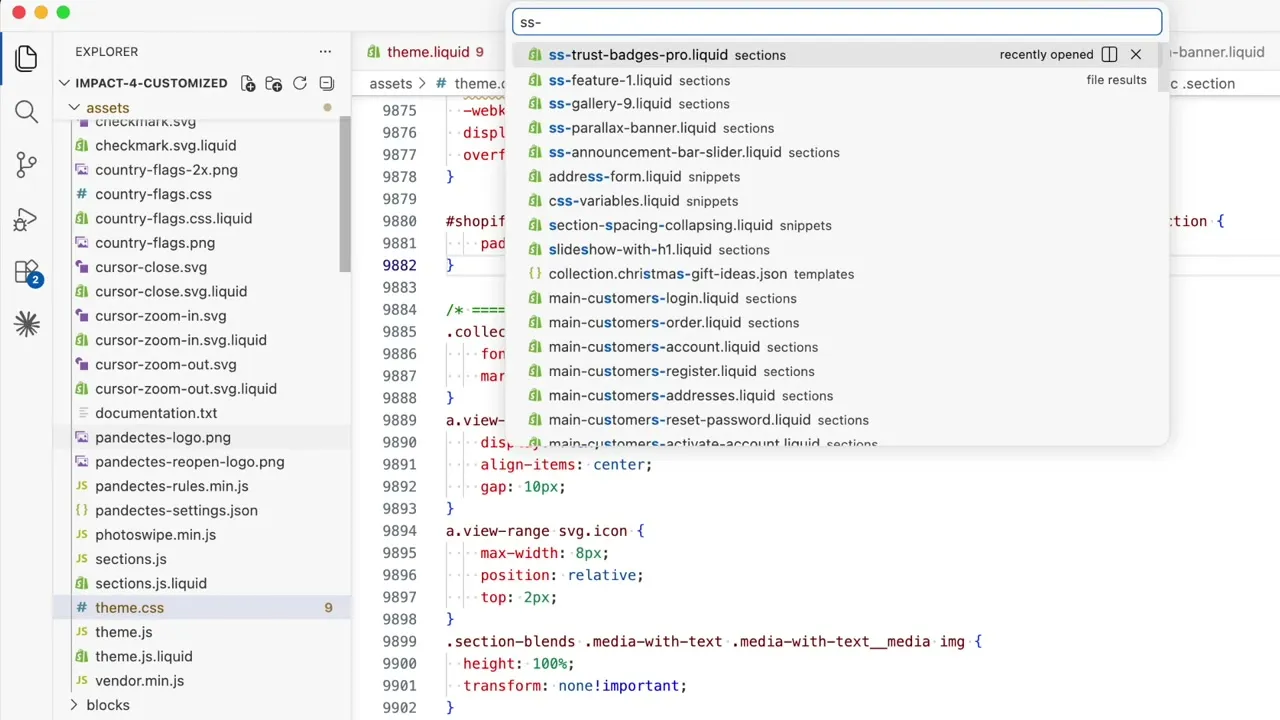
I checked the sections folder in the updated Impact 7 theme and all of those sections were there.
They were also using my breadcrumbs section, which they bought from my shop. I prefix all of my sections with ed_, so the file is called ed_breadcrumbs.liquid. It copied across too, and the breadcrumbs kept working without me doing anything.
So these are the things that transfer without any work:
- Custom sections you added, whether they’re mine, from an app, or written for you
- Custom blocks that are in their own files
- Snippets you created
- Assets — icons, logos, custom CSS files, custom JS files
The reason is simple. The new theme version doesn’t have a file with that name, so there is nothing to compare against and Shopify just copies your file in.
What is a conflict?
A conflict is when you changed something and the theme developer changed the same thing.
Let’s say you customized the add to cart button. If the theme update didn’t touch the add to cart button code, your version might come across fine. But if the theme developers also rewrote that part, your changes get discarded.
Shopify will always use the more official version. When it merges the two themes and sees that both sides changed the same file, it keeps the theme developer’s version.
Which code edits were lost
Google Tag Manager in theme.liquid
GTM was pasted into the <head> in theme.liquid.
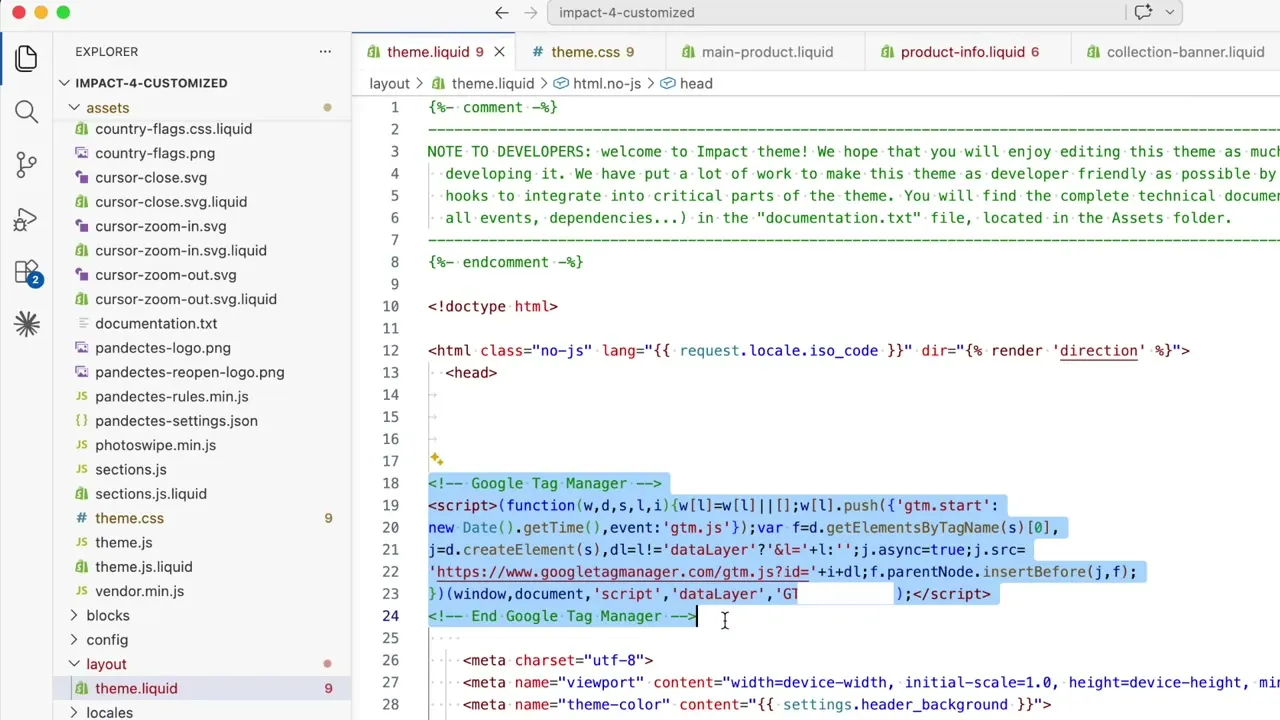
In the Impact 7 theme.liquid that code is completely missing, so the tracking stops working until somebody notices and puts it back. A lot of you are running GTM this way.
jQuery and Slick carousel
Their developer had used jQuery and Slick carousel for some extra sliders. That’s two script tags, also in theme.liquid, and they didn’t carry across either.
About 300 lines of CSS in theme.css
This was the biggest loss.
Their developer had added a lot of CSS to the end of theme.css.
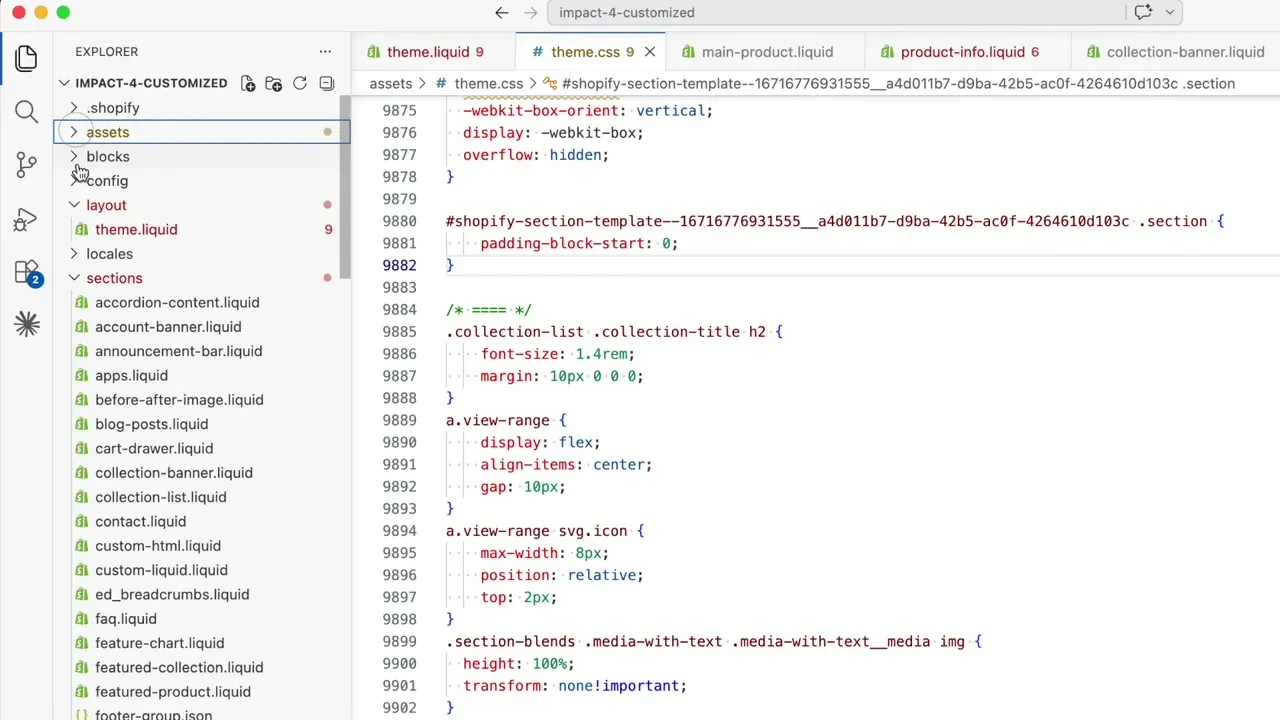
Adding at the end of the file is much better than editing the body of theme.css, so that part was done sensibly. If you’re a beginner writing CSS in a theme, I recommend not modifying the existing theme CSS at all, but overriding it lower down in the file instead. Most of the time you can avoid touching the theme’s own rules — it’s about using greater specificity and creative targeting.
But it was still lost, because Impact 7 also added a lot of new code towards the end of theme.css. Both sides changed the same part of the same file, so the theme update won and I had to add all of that styling back in manually.
If Impact 7 hadn’t made any changes to theme.css, those 300 lines would have come across. So some of this depends on what the theme developers happened to change in that release.
JavaScript in theme.js
Same situation. Some code for Slick was added at the end of theme.js, and Impact 7 rewrote theme.js, so it was lost.
This one was avoidable. If that JavaScript had been in a custom.js file, the whole file would have been copied across and nothing would have been lost. Same with the CSS.
A custom delivery message block
They had a delivery message showing under the add to cart button. The code for it was inside product-info.liquid, and the settings that control it were in main-product.liquid.
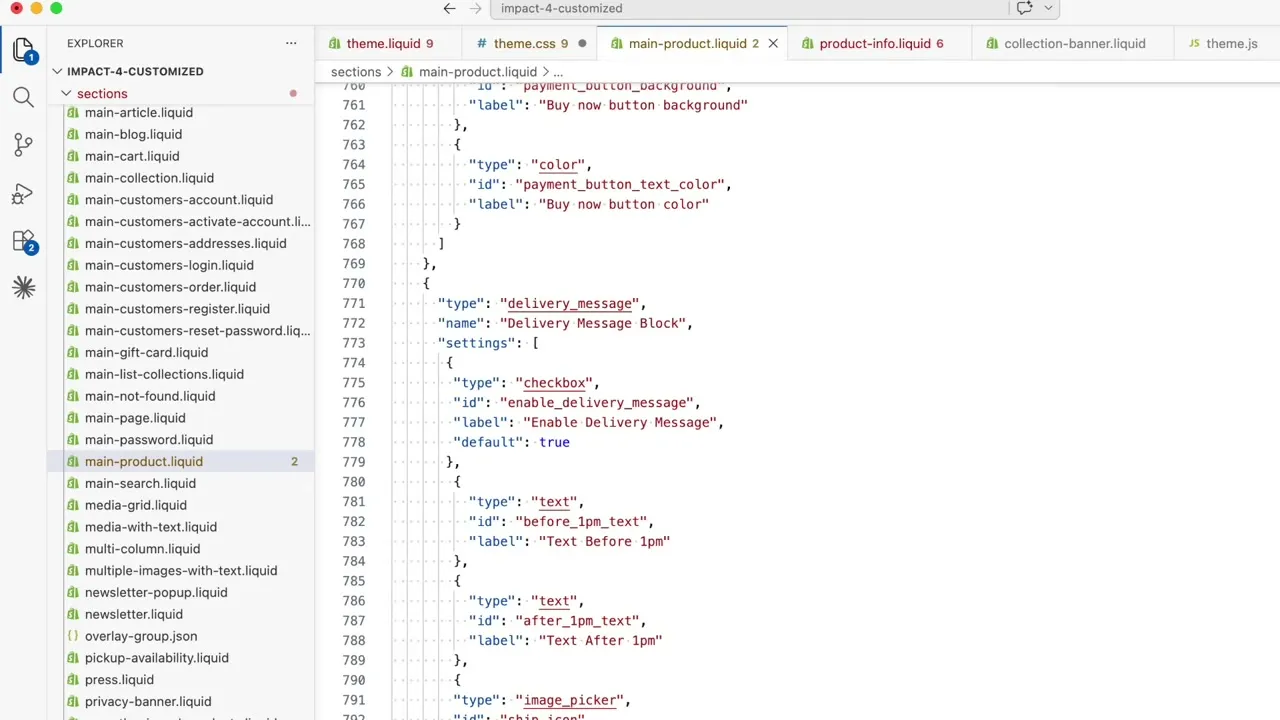
Both of those files changed in Impact 7, so the block and its settings were lost.
Why there were so many changes
They were updating for the first time in about three years. Impact 4 came out in 2023 and they went straight to the 2026 version, so a lot of the theme had been rewritten in between.
If it had been one year instead of three, the theme update would have been smaller, fewer files would have conflicted, and more of their code would have come across on its own.
Tips for easier updates in future
These apply whether you’re a developer or you’re modifying your own theme.
- If you’re going to write a lot of CSS, put it in its own
custom.cssfile. Name it whatever you want, just make it a separate file. - Write CSS that overrides the theme CSS. Don’t edit the theme CSS itself if you can avoid it, and most of the time you can.
- Put your JavaScript in its own
custom.jsfile for the same reason. - If you’re making a custom section, keep its CSS in a stylesheet tag inside that section file, or in a separate CSS file.
- If you need to modify an existing section, consider duplicating it and customizing the duplicate. Let the store owner know they now have two versions of that file. When they update, nothing will break and they’ll still have the section they were using.
- Leave comments in the code for other developers. Large comment blocks to separate things make it much easier to find a feature later.
It all comes down to keeping your work as separate from the theme as possible. Create new files rather than editing existing ones.
If you’re looking for a developer to do your theme update, there are a few links in the description of the video.
Hope you found this useful. Any questions, please leave a comment.
Ed